To securely grant access to an authorised person (such as your accountant, finance manager or bookkeeper) for Maxer, simply follow the five steps below. This method ensures that you remain in control of your Maxer account, you can manage who has access, and assign appropriate permissions.
Remember: Authorised persons should be invited to access Maxer with their own unique user/login. Please never share your personal login details!
To grant access to your Maxer account, please follow these simple steps:
-
Log in to your Maxer client area
Access your account by logging into the Maxer client area: https://my.maxer.com/login
-
Open User Management
-
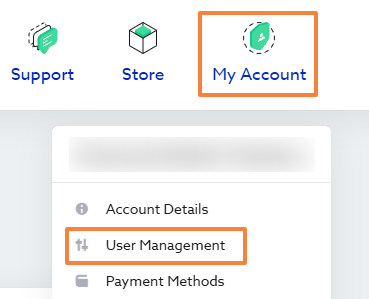
Click on "My Account" in the navigation bar and select User Management.
-
-
Invite a new user
-
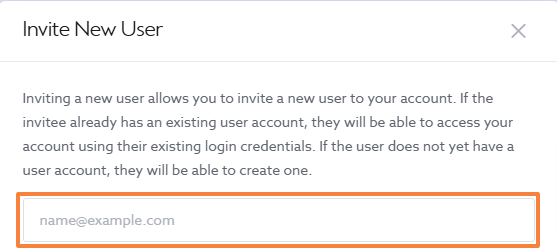
Click on the "Invite New User" button.

-
Enter the email address of your accountant or finance contact.
-
-
Set the necessary permissions
When adding the user, we recommend granting the following permissions:
-
View & Pay Invoices: Allows your accountant to view invoices and make payments on your behalf.
-
View Products & Services: Allows visibility of active services for billing and reconciliation purposes.
-
-
Optional permissions
If you would like your accountant or finance contact to communicate with us directly, you can also grant:
-
View & Open Support Tickets: Allows them to contact our team regarding billing queries.

-
-
Confirm access
Once the permissions are set, click on the "Send Invite" button:

If the authorised person is already registered with Maxer, they will be granted access using their existing login. Otherwise, they will receive an email with a link to create a new account.
On the User Management page, you can track invitation status, manage users, and update permissions at any time.
For any further assistance, feel free to contact our support team.
Updated by WR on 31/03/2026